A stretched or mismatched wallpaper can ruin the symmetry of a dual-screen setup. Ultrawide monitors and multi-display rigs need images that hold detail across wide ratios without breaking focus. The right file feels like a single canvas, not two screens stitched together.
Understanding Ultrawide and Dual-Screen Ratios
Most ultrawide monitors use 21:9 or 32:9 aspect ratios, while dual-screen setups often run two 16:9 panels side by side. That means a combined resolution of 5120x1440 or higher. A wallpaper that looks crisp on one display may blur or crop awkwardly when stretched across both.
When browsing, check the resolution in the file details. A good rule: choose an image at least 1.5x your total horizontal resolution. For example, two 2560x1440 monitors need a file around 7680x1440 to avoid pixelation.
If you prefer natural landscapes or wide horizons, the Landscape category offers balanced compositions that span evenly. Abstract and digital art pieces from Digital Art often scale well without visible seams.
How to Align a Wallpaper Across Two Displays
Windows 11 and macOS handle multi-monitor wallpapers differently. On Windows, right-click the desktop, choose Personalize -> Background, and select Span under the fit options. This stretches one image across all screens. macOS requires setting the same image on each display manually, but you can align them by cropping the file to match your combined layout.
For curved ultrawide monitors, avoid images with strong vertical lines near the edges-they distort slightly at the curve. Panoramic shots or gradient-based art keep the illusion of depth without bending obvious shapes.
Quick setup checklist
- Match image resolution to combined display width.
- Use PNG or high-quality JPEG to preserve fine gradients.
- Disable slideshow mode if you want static alignment.
- Preview the crop before applying on both screens.
Recommended Wallpaper Styles
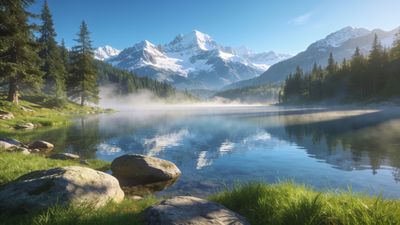
- Panoramic landscapes: Mountains, oceans, or city skylines maintain visual flow across wide ratios. Try the Majestic Mountain Sunrise Over Snowy Peaks Wallpaper for natural balance.
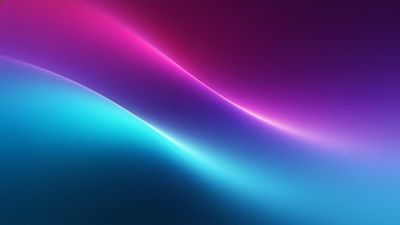
- Abstract gradients: Smooth color transitions minimize visible seams. The Vibrant Gradient Waves In Motion Wallpaper adapts gracefully to 32:9 layouts.
- Cosmic or sci-fi scenes: Deep space compositions like the Vibrant Cosmic Swirl In Deep Space Wallpaper fill ultrawide monitors with motion and symmetry.
If you enjoy bold color and energy, explore Colorful wallpapers for dynamic setups that stay sharp edge to edge.
Avoiding Common Pitfalls
Many users stretch a single 4K wallpaper across dual 1440p screens, causing blur and loss of detail. Instead, pick files labeled 5K, 6K, or 8K. Watch for centered subjects-faces or logos can split across the bezel line. Shift them slightly left or right before saving.
When editing, use a canvas matching your total resolution. Export with minimal compression to prevent banding in gradients. If you rely on dark themes, test with system UI visible to ensure icons remain legible.
Final Setup Tips
After applying your chosen wallpaper, fine-tune brightness and color temperature across monitors so tones match. Even small differences in calibration can break the illusion of one continuous image.
Rotate between a few favorites-panoramic nature shots for calm focus, digital abstracts for creative work sessions, and cosmic scenes for late-night ambience. Favoriting wallpapers makes it easy to re-download after system resets.
Dual-screen and ultrawide setups deserve visuals designed for their width. With the right resolution and composition, your desktop becomes a single uninterrupted view rather than two competing frames.