Getting two or more displays to share a single seamless wallpaper on Windows 11 can look incredible when done right. The system now handles multi-monitor backgrounds better than before, but a few settings still hide behind menus most users overlook.
Understanding how Windows 11 treats multiple displays
Windows 11 stores wallpapers per monitor profile. When you connect a new display, it may default to duplicating your primary background rather than stretching or assigning a new one. The Personalization -> Background panel manages each screen separately, and the Choose your picture section lets you right-click an image thumbnail to assign it to a specific monitor.
If you want a single panoramic image spanning both screens, the file must match the combined resolution. For example, two 2560x1440 monitors side by side need a 5120x1440 wallpaper. You can find wide-format options in Abstract or Windows 11 Wallpapers collections.
Setting a single panoramic wallpaper
A wide wallpaper gives a cinematic feel, especially on matching monitors. To apply one correctly:
- Save the panoramic image locally.
- Right-click the desktop and choose Personalize.
- Under Background, set Personalize your background to Picture.
- Click Browse photos and select your wide image.
- In the Choose a fit dropdown, pick Span.
The Span option tells Windows to stretch the image across all connected displays. If the monitors have different resolutions or scaling factors, you may see slight misalignment at the join. Try adjusting each display’s scaling under Display settings -> Scale & layout until the horizon or design lines up.
Assigning different wallpapers to each monitor
Some setups look better when each screen carries its own theme. Windows 11 makes this easy:
- Open Settings -> Personalization -> Background.
- Choose your preferred wallpaper thumbnails.
- Right-click the image and select Set for monitor 1 or Set for monitor 2.
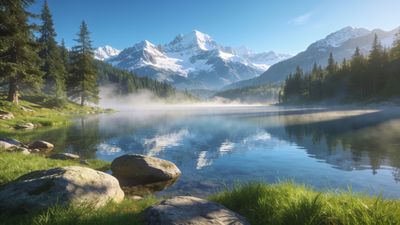
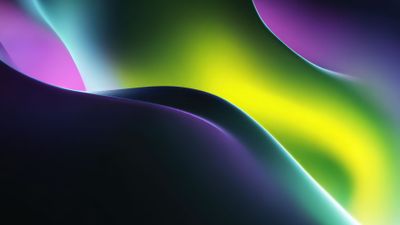
This approach works best when both images share color tones or lighting direction. Pair complementary designs such as Cosmic Cascade on one side and Solitary Reflection on the other to maintain visual balance.
If you prefer consistency, pick two images from the same creator or category so brightness and palette match. Collections like Abstract often include series designed to work together.
Tips for resolution and alignment
A mismatch in resolution is the most common reason a seamless wallpaper looks off. Follow these checks:
- Match aspect ratios: Two 16:9 monitors align naturally; mixing 16:10 or ultrawide panels introduces gaps.
- Use native resolution files: Avoid scaling smaller images up. Instead, download 4K or higher versions from the Windows 11 Wallpapers category.
- Disable slideshow mode if you want static alignment. Slideshows can desync across monitors.
- Check taskbar placement: When the taskbar spans both screens, it can obscure key parts of the image. Set it to appear only on the main display for a cleaner look.
Using third‑party tools for advanced layouts
If you need more control-like offsetting a design or mixing portrait and landscape screens-tools such as DisplayFusion or Wallpaper Engine provide per-monitor positioning and animation. These apps let you crop, zoom, or offset each image independently while keeping them synced at startup.
Windows 11’s built-in options now cover most needs, but enthusiasts who switch wallpapers frequently may appreciate the automation these programs offer. Always export images at full resolution to avoid compression artifacts when spanning multiple displays.
Final adjustments and maintenance
After setting your wallpapers, lock the PC and check the alignment on the login screen. Windows sometimes caches lower-resolution copies there. If the preview looks blurry, reapply the wallpaper from the Personalization menu.
Keep a small folder of your favorite multi-monitor backgrounds so you can restore them quickly after updates or driver resets. Using consistent naming helps Windows remember assignments.
For inspiration, explore wide or dual-screen designs in Windows 11 Wallpapers. A few minutes of setup can turn your workspace into a cohesive visual field instead of two separate rectangles.
Wrapping up
Windows 11 finally makes dual and multi-monitor wallpaper management straightforward. Whether you span one ultra-wide image or coordinate matching pairs, the key is resolution alignment and correct fit mode. Once tuned, your desktop feels like a single canvas stretching across every display.
Experiment with panoramic art, geometric abstracts, or calm nature scenes until you find a combination that fits your workflow and lighting. The difference between mismatched screens and a unified setup is night and day.