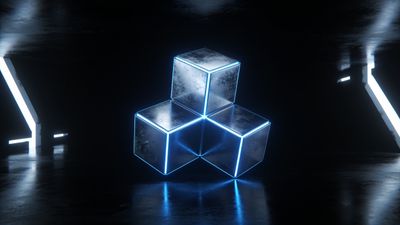
Dynamic wallpapers on macOS Sonoma shift appearance as the day progresses, blending light and dark scenes that follow your local time or system theme. They add subtle motion and context to your desktop without distracting animations. If you’ve just upgraded to Sonoma, setting them up correctly ensures smooth transitions and consistent color balance across displays.
Understanding Dynamic Wallpapers in macOS Sonoma
Apple’s dynamic wallpapers are time-based HEIC files containing multiple images. Each frame represents a different lighting condition, from dawn to dusk. macOS switches between them automatically using your geolocation or system appearance setting.
Sonoma refines this feature by improving HDR rendering and adding smoother transitions on external monitors. The system now respects Night Shift and True Tone adjustments, preventing color jumps when the wallpaper changes.
Dynamic wallpapers differ from the older “Light” and “Dark” stills. They respond to your environment, not just theme mode. When you pick one of Apple’s defaults, such as the new desert or mountain scenes, you’ll see gradual light shifts instead of instant swaps.
If you prefer custom visuals, you can also use third-party dynamic wallpapers downloaded from sites like Pixground. For instance, the Mystical Ocean Waves With Glittering Stars Wallpaper captures a calm night glow that fits perfectly with Sonoma’s dark interface.
How to Enable Dynamic Wallpapers on macOS Sonoma
You can activate dynamic wallpapers through System Settings or directly from Finder. Both methods use the same underlying preference file, so changes appear instantly.
Using System Settings
- Open System Settings from the Apple menu.
- Select Wallpaper in the sidebar.
- Choose a dynamic wallpaper from the Apple collection or click Add Folder to include your own HEIC files.
- Under Appearance, select Dynamic. This ensures the wallpaper changes with the time of day.
If you prefer a static look, choose Light (Still) or Dark (Still) instead. These freeze the wallpaper at one stage of the cycle.
Using Finder
- Locate your dynamic HEIC file in Finder.
- Right-click and choose Set Desktop Picture.
- macOS automatically recognizes it as dynamic if the file contains multiple frames.
You can confirm the mode by returning to System Settings -> Wallpaper. The selected image will show a small sun-moon icon when dynamic mode is active.
Creating and Importing Custom Dynamic Wallpapers
macOS supports custom dynamic wallpapers created with Apple’s HEIC format. Each frame must include EXIF metadata defining the time or solar angle. Several free tools can generate these sequences from static images.
When building your own, follow these guidelines:
- Resolution: Match or exceed your display resolution (5K for iMac, 6K for Studio Display).
- Color profile: Use Display P3 for accurate tone mapping.
- Frame count: 8-16 frames provide smooth transitions without large file sizes.
- Naming: Keep filenames simple; macOS uses internal metadata, not filenames, to order frames.
After exporting the HEIC file, drag it into the Wallpaper settings panel. It will appear under Custom with the same dynamic controls as Apple’s defaults.
For inspiration, explore the Digital Art category, which includes layered compositions that adapt beautifully to light changes. Abstract gradients and subtle textures often work best because they hide compression artifacts between frames.
Troubleshooting Common Issues
Dynamic wallpapers rely on system location and appearance settings. If transitions stop working, check these points:
- Ensure Location Services are enabled under Privacy & Security -> Location Services.
- Verify that System Appearance is set to Auto if you want the wallpaper to follow sunrise and sunset.
- Reapply the wallpaper if you switched displays or resolution; macOS occasionally resets the mode after major layout changes.
If you notice flickering or mismatched tones, disable True Tone temporarily to test. Some external monitors interpret brightness changes differently, causing visible jumps.
You can also reset the wallpaper cache by deleting the plist file at ~/Library/Application Support/Dock/desktoppicture.db and restarting Finder. This forces macOS to rebuild the wallpaper index.
Choosing the Best Dynamic Wallpapers
Dynamic wallpapers shine when the subject and lighting evolve naturally. Landscapes, skies, and minimal abstract patterns perform better than busy scenes. Avoid heavy contrast edges-they can appear jarring when frames switch.
Try pairing the Ethereal Waves of Blue and Purple Wallpaper with Sonoma’s dark accent colors for a seamless dusk effect. It’s a good example of how soft gradients can mimic natural light transitions.
If you prefer bold color shifts, the Dynamic category includes designs that emphasize motion and hue changes. Many creators upload HEIC sequences optimized for macOS, so you can test several without manual setup.
Final Tips for a Cohesive Desktop
- Match your wallpaper’s tone with the system accent color for a unified look.
- Use Stage Manager or Mission Control to preview how the wallpaper interacts with window layouts.
- Keep a small collection of favorites and rotate them monthly to avoid visual fatigue.
Dynamic wallpapers are more than decoration-they subtly reflect time and mood. Once configured, they make your Mac feel alive, shifting with your day while staying unobtrusive.
For high-resolution backgrounds that complement Sonoma’s new interface, filter the 4k mac wallpaper tag to find crisp, time-aware designs that look sharp on Retina displays.