Windows 12 preview builds are rolling out with deeper personalization hooks, and one of the most requested features is native support for animated or live wallpapers. If you’ve been using third‑party tools on Windows 11, the process now feels smoother but still needs a few careful steps to avoid performance hiccups.
Understanding Live Wallpapers on Windows 12
Windows 12 introduces a new personalization API that allows dynamic backgrounds without relying entirely on background apps. In the current preview, this feature is hidden behind developer flags, so most users still depend on utilities like Lively Wallpaper or Wallpaper Engine. These apps now integrate better with the system compositor, meaning less stutter when switching virtual desktops or waking from sleep.
Animated wallpapers use small video loops or lightweight WebM files that play behind your icons. The system pauses playback when a window is maximized to preserve GPU resources. This behavior differs from Windows 11, where live wallpapers often kept running in the background regardless of focus.
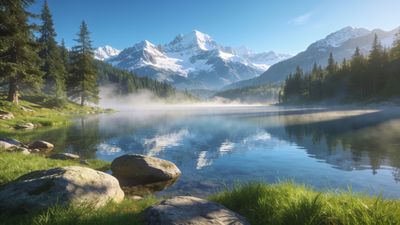
If you prefer subtle motion, try looping clips that emphasize color gradients or particle movement. A calm example is the Serene Mountain Lake At Sunrise Wallpaper, which works well when converted to a short video sequence.
Preparing Your System for Live Wallpapers
Before enabling motion backgrounds, confirm that your device meets the preview build’s GPU and memory requirements. Windows 12’s compositor relies on DirectX 12‑capable hardware for smooth playback.
- Check version: Open Settings -> System -> About and verify that your build number is from the Windows 12 Insider Dev Channel.
- Update drivers: Use Windows Update or your GPU vendor’s tool to install the latest graphics drivers.
- Power plan: Switch to Balanced or High Performance mode to prevent frame drops.
If you’re upgrading from Windows 11, your existing static wallpapers remain intact. You can still browse static collections such as Windows 11 for fallback images when testing dynamic modes.
Installing a Live Wallpaper Utility
Until Microsoft exposes the built‑in motion wallpaper toggle, you’ll need a helper app. Two popular options already support the Windows 12 compositor.
Lively Wallpaper (Microsoft Store)
- Install Lively Wallpaper from the Store.
- Launch it and click Add Wallpaper.
- Choose a video file or paste a YouTube link (Lively downloads and loops it locally).
- Set playback behavior under Performance -> Pause when fullscreen.
Lively automatically adjusts resolution and frame rate to match your display refresh rate. It also supports multiple monitors, though each screen requires its own wallpaper instance.
Wallpaper Engine (Steam)
- Install Wallpaper Engine and enable the Windows 12 compatibility option in settings.
- Import your animation or select from community presets.
- Configure Playback -> Stop when using battery to save power on laptops.
Wallpaper Engine can sync motion speed with system time or audio levels. This makes reactive backgrounds possible, though they consume more GPU cycles.
Creating Your Own Animated Background
If you want to personalize beyond presets, convert a short MP4 or WebM clip into a looping wallpaper. Keep the duration under 15 seconds and resolution at or below 4K to prevent memory spikes.
- Trim the clip using the Photos app or a lightweight editor.
- Export with H.264 video codec and AAC audio disabled.
- Test playback in your wallpaper app before setting it system‑wide.
For inspiration, look through the Dynamic category, which features motion‑ready designs. Wallpapers like Mystical Neon Canyon Dreamscape Wallpaper provide excellent base material for subtle loops.
Managing Performance and Battery Life
Live wallpapers can draw extra power, especially on laptops. Windows 12 includes a new Dynamic Refresh Rate toggle that lowers the screen’s Hz when idle. Combine this with your wallpaper app’s pause‑on‑battery setting for best results.
If you notice lag:
- Reduce wallpaper resolution to match your display.
- Disable transparency effects under Settings -> Personalization -> Colors.
- Avoid running multiple animated wallpapers across monitors simultaneously.
When using HDR displays, ensure your wallpaper video uses the same color profile as your monitor to prevent washed‑out tones.
Troubleshooting Common Issues
Wallpaper resets after reboot: Some preview builds still clear third‑party wallpaper hooks at startup. Set your app to launch with Windows and reapply automatically.
Audio playback conflicts: Disable sound in wallpaper videos. Windows 12 treats them as media sessions, which can interfere with music apps.
Black screen during sleep wake: Update GPU drivers and disable hardware acceleration in your wallpaper app’s advanced settings.
These quirks should stabilize once Microsoft finalizes the personalization API. Feedback from Insider users is already shaping the next build’s wallpaper behavior.
Next Steps
Experiment with different motion speeds and brightness levels to find a balance between immersion and distraction. Save your favorite setups so you can restore them after updates. If you prefer a calmer desktop, mix live and static backgrounds-perhaps a dynamic night sky paired with a still from Abstract for contrast.
Windows 12’s personalization layer is still evolving, but early access already shows how fluid desktops can become. Once the feature goes mainstream, expect native live wallpaper controls under Settings -> Personalization -> Background -> Motion.
By following these steps, you can safely explore animated wallpapers today and be ready for the official rollout.