Creating realistic animal wallpapers with AI is equal parts art direction and technical phrasing. The latest AI models like Midjourney v6 and SDXL Turbo can now render fur, feathers, and reflections with near-photographic accuracy - but only when the prompt gives them the right cues.
Understanding realism in AI animal art
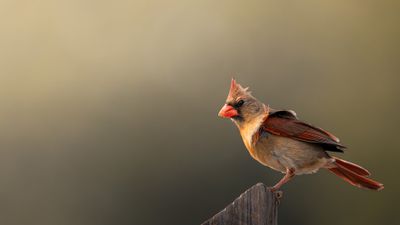
A convincing wildlife portrait depends on depth, texture, and believable anatomy. AI models interpret words such as macro lens, soft natural light, and shallow depth of field to simulate camera optics. These details separate a lifelike fox from a plastic-looking one.
When writing prompts for realism:
- Specify the species and environment. “Red fox in early morning fog” gives clearer context than “fox in nature.”
- Add lens and lighting terms. Try “85mm portrait, golden hour light, detailed fur.”
- Avoid style clashes. Mixing “oil painting” with “photorealistic” confuses the model.
If you want to see how these details translate into finished wallpapers, browse the Animals category for inspiration from creators who already mastered this balance.
Building prompts that capture emotion
A portrait feels alive when the animal’s expression tells a story. AI can exaggerate or flatten emotion depending on phrasing. Words like curious gaze, alert posture, or gentle eyes guide the model toward subtle realism.
To keep results consistent:
- Use singular focus: one subject, centered composition.
- Describe mood instead of color alone: “calm dawn light” evokes atmosphere better than “orange background.”
- Limit adjectives to three or fewer; too many cause visual noise.
Pair emotional direction with environmental realism. For example, “golden retriever sitting in tall grass, soft backlight, shallow depth of field” yields balanced warmth and detail.
Technical settings for sharp, believable results
Even the best prompt fails if render parameters are off. Both Midjourney and SDXL respond strongly to aspect ratio and sampling steps.
- Aspect ratio: 16:9 for desktop wallpapers, 9:16 for phones.
- Resolution: aim for 4K or higher to preserve fur detail.
- Sampling: higher steps reduce blur but increase render time.
After generation, check for anatomical distortions - extra limbs or asymmetrical eyes - and rerun the prompt with --fix details or --refine pass if supported.
Once you have a clean render, compare it with examples in the AI Generated collection to see how others balance realism and composition.
Refining texture and lighting in post-processing
AI renders often need subtle edits before they feel natural. Use lightweight adjustments rather than heavy filters.
- Color correction: match fur tones to reference photos.
- Contrast: lift midtones without crushing shadows.
- Sharpen selectively: eyes and whiskers benefit from clarity; background should stay soft.
- Noise cleanup: gentle denoise preserves skin or feather texture.
If you work in Photoshop or Krita, add a faint vignette to draw focus toward the subject’s face. Keep saturation modest - overprocessed color breaks realism.
For a sense of balanced tone and depth, study wallpapers like The Watcher. Its controlled lighting and sharp focal point show how restraint enhances believability.
Prompt templates to start experimenting
Here are adaptable structures for different species:
- Big cats: “close-up portrait of a Bengal tiger, sunlight filtering through jungle leaves, 85mm lens, photorealistic detail.”
- Birds: “eagle mid-flight, crisp feathers, blue sky background, high shutter speed look.”
- Marine life: “sea turtle underwater, rays of light through clear water, realistic caustics.”
- Pets: “golden retriever resting on wooden floor, natural indoor light, shallow depth of field.”
Use these as a baseline and adjust adjectives for mood or environment. Always preview at full resolution to catch render artifacts before uploading.
Preparing your AI animal wallpaper for upload
Before sharing your creation, confirm these basics:
- Export in PNG or high-quality WebP to avoid compression banding.
- Verify color accuracy on both phone and monitor screens.
- Add accurate tags like realistic, wildlife, and portrait so others can find it easily.
- Include the model and version used (e.g., SDXL Turbo) in the description for transparency.
When your image meets these checks, upload it under the Animals category. Tag it appropriately so it appears alongside authentic wildlife pieces.
Next steps
Experiment with lighting variations - dawn, overcast, and twilight - to build a small series. Save your favorite renders and compare them with community uploads in the AI Generated section. The more you iterate, the better your sense for prompt phrasing becomes.
For high-resolution results that hold up on large displays, explore the 4k tag to find examples of 4K animal wallpapers already optimized for clarity.
By mastering descriptive prompts and mindful editing, you can produce AI animal portraits that feel captured, not generated. The difference lies in the words you choose and the patience to refine them.